> ## Documentation Index
> Fetch the complete documentation index at: https://unstructured-53-docs-245-multimodal.mintlify.site/llms.txt
> Use this file to discover all available pages before exploring further.
# Welcome to Unstructured!
To start using Unstructured right away, skip ahead to the [UI quickstart](#unstructured-ui-quickstart) or [API quickstart](#unstructured-api-quickstart) now!
## What is Unstructured?
Unstructured provides a platform and tools to ingest and process unstructured documents for [retrieval-augmented generation (RAG)](https://unstructured.io/blog/rag-whitepaper) and [agentic AI](https://unstructured.io/problems-we-solve#powering-agentic-ai).
This 60-second video describes more about what Unstructured does and its benefits (no sound):
This 40-second video demonstrates a simple use case that Unstructured helps solve (no sound):
This 60-second video shows why using Unstructured is preferable to building your own similar solution:
You can use Unstructured through a user interface (UI), an API, or both. Read on to learn more.
***
## Unstructured UI quickstart
This quickstart shows how, in just a few minutes, you can use the Unstructured user interface (UI) to quickly and easily see Unstructured's
best-in-class transformation results for a single file that is stored on your local computer.
This quickstart focuses on a single, local file for ease-of-use demonstration purposes.
To use Unstructured later to do
large-scale batch processing of multiple files and semi-structured data that are stored in remote locations,
[skip over](/ui/quickstart#remote-quickstart) to the remote quickstart after you finish this one.
If you do not already have an Unstructured account, [sign up for free](https://unstructured.io/?modal=try-for-free).
After you sign up, you are automatically signed in to your new Unstructured **Let's Go** account, at [https://platform.unstructured.io](https://platform.unstructured.io).
If you already have an Unstructured **Pay-As-You-Go** or **Business SaaS** account, you are already signed up for Unstructured.
Sign in to your existing Unstructured **Pay-As-You-Go** or **Business SaaS** account, at [https://platform.unstructured.io](https://platform.unstructured.io).
If you already have an Unstructured **dedicated instance** or **in-VPC** deployment, your sign-in link will be unique to your deployment.
If you're not sure what your unique sign-in link is, see your Unstructured account administrator, or email Unstructured Support at
[support@unstructured.io](mailto:support@unstructured.io).
Do the following:
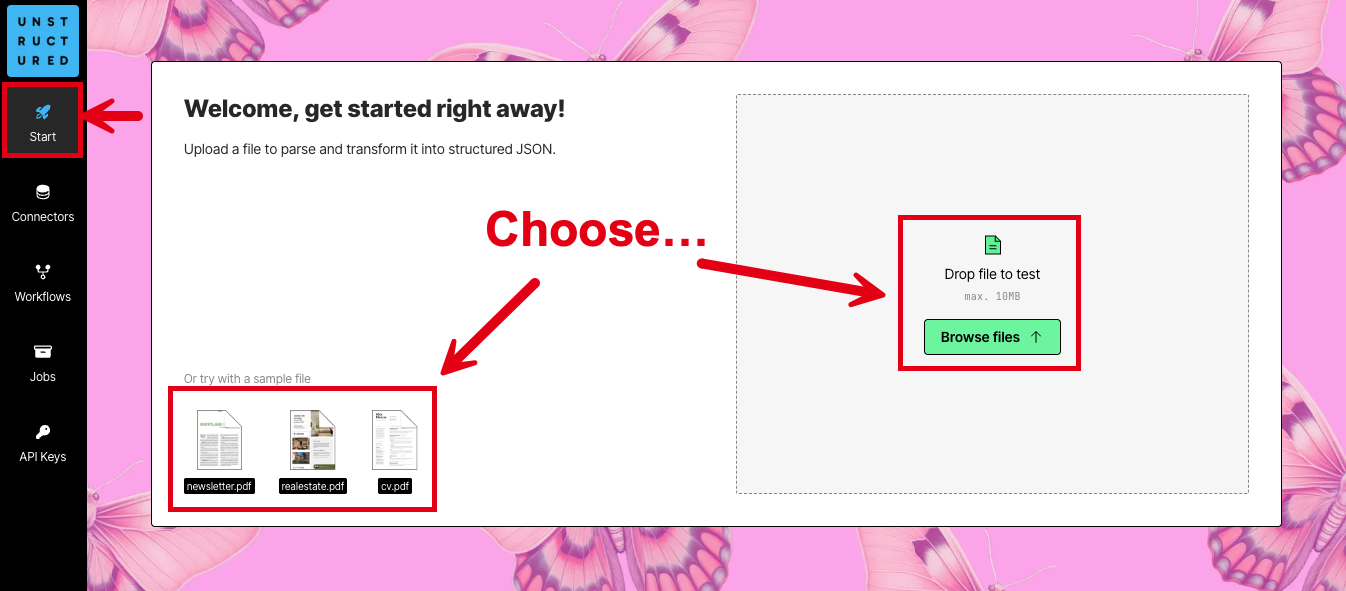
1. After you are signed in, the **Start** page appears.
2. In the **Welcome** area, do one of the following:
* Click one of the sample files, such as **realestate.pdf**, to have Unstructured parse and transform that sample file.
* Click **Browse files**, or drag and drop a file onto **Drop file to test**, to have Unstructured parse and transform your own file.
If you choose to use your own file, the file must be 10 MB or less in size. Also, the file must be one of the following supported file types:
| File extension |
| -------------- |
| `.bmp` |
| `.csv` |
| `.doc` |
| `.docx` |
| `.eml` |
| `.epub` |
| `.heic` |
| `.html` |
| `.jpeg` |
| `.jpg` |
| `.md` |
| `.msg` |
| `.odt` |
| `.org` |
| `.p7s` |
| `.pdf` |
| `.png` |
| `.ppt` |
| `.pptx` |
| `.rst` |
| `.rtf` |
| `.tif` |
| `.tiff` |
| `.tsv` |
| `.txt` |
| `.xls` |
| `.xlsx` |
| `.xml` |
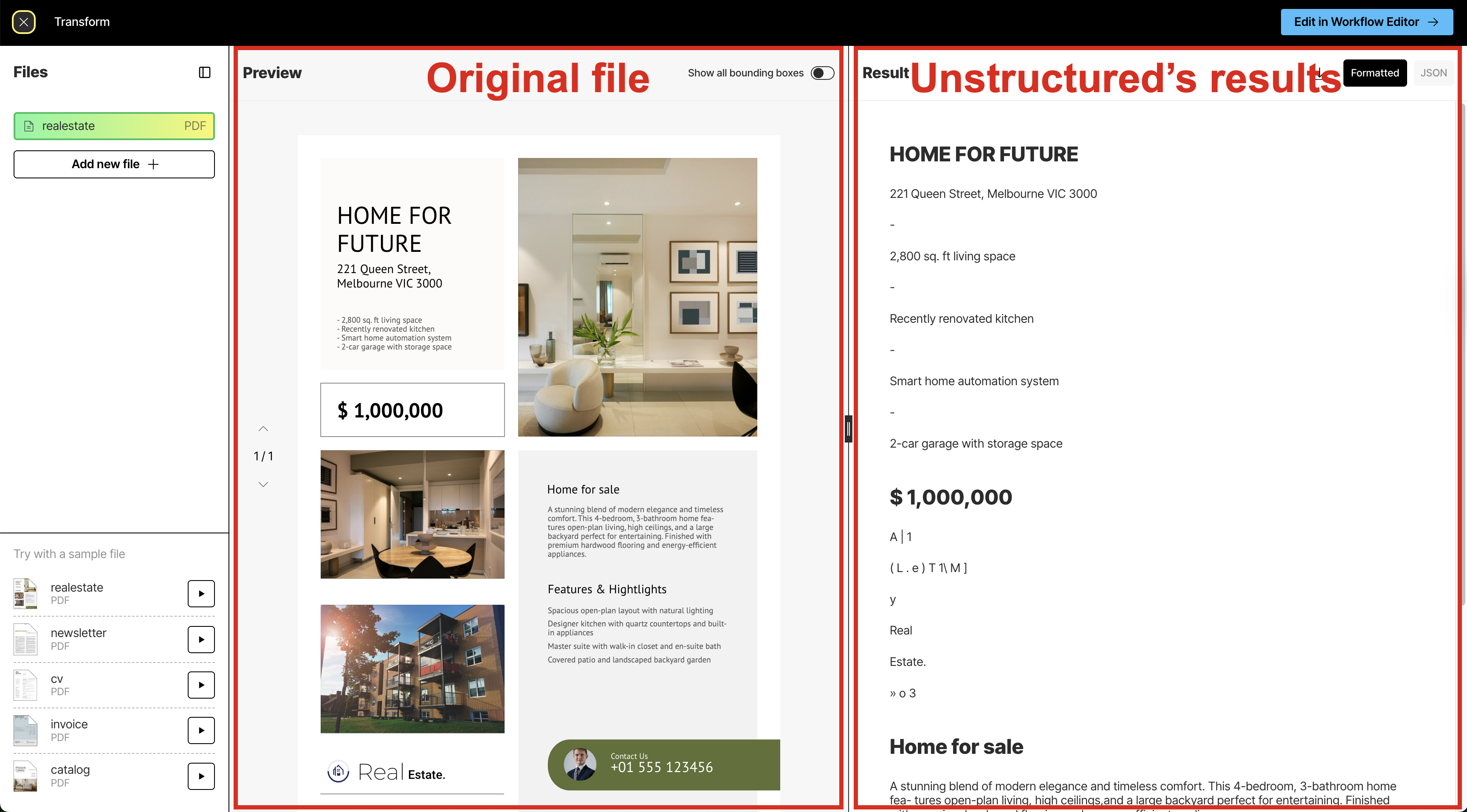
3. After Unstructured has finished parsing and transforming the file (a process known as
[partitioning](/ui/partitioning)), you will see the file's contents in the
**Preview** pane in the center and Unstructured's results in the **Result** pane on the right.
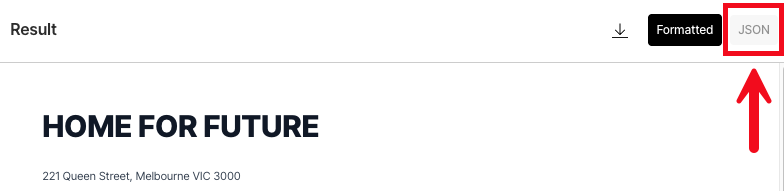
4. The **Result** pane shows a formatted view of Unstructured's results by default. This formatted view is designed for human
readability. To see the underlying JSON view of the results, which is designed for RAG and agentic AI,
click **JSON** at the top of the **Result** pane.
[Learn about what's in the JSON view](/ui/document-elements).
5. Unstructured's initial results are based on its **High Res** [partitioning strategy](/ui/partitioning), which
begins processing the file's contents and converting these contents into a series of Unstructured
[document elements and metadata](/ui/document-elements). This partitioning strategy provides good results overall, depending on the complexity of the file's contents.
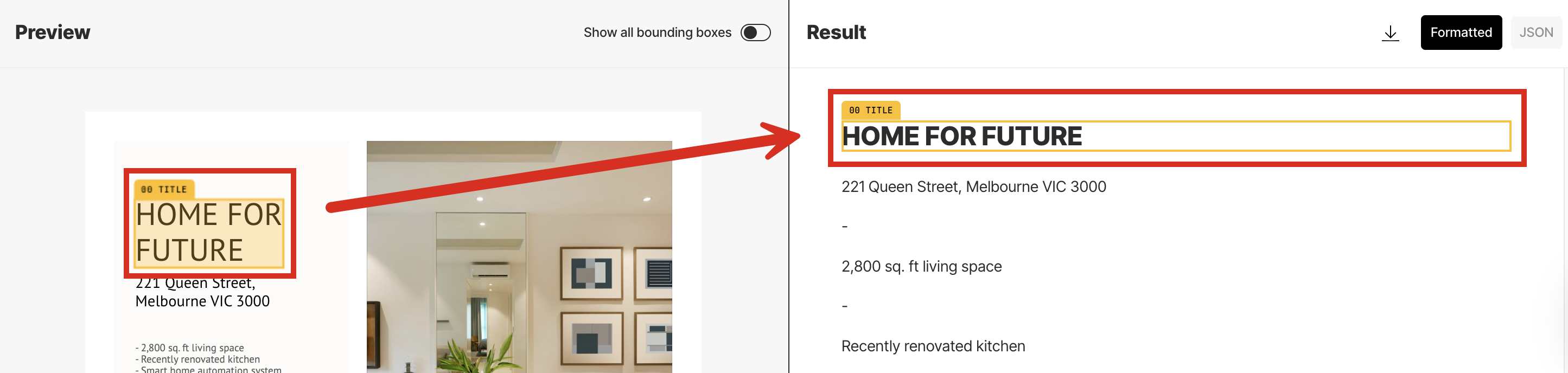
This partitioning strategy also generates a bounding box for each detected object in the file. A *bounding box* is
an imaginary rectangular box drawn around the object to show its location and extent within the file.
After the High Res partitioning results are shown, Unstructured begins improving these initial results by
using vision language models (VLMs) to apply a series of generative refinements known as *enrichments*. These
enrichments include:
* An [image description](ui/enriching/image-descriptions) enrichment, which uses a VLM to provide a text-based summary of the contents of each detected image.
* A [generative OCR](/ui/enriching/generative-ocr) enrichment, which uses a VLM to improve the accuracy of each block of initially-processed text.
* A [table to HTML](/ui/enriching/table-to-html) enrichment, which uses a VLM to provide an HTML-structured representation of each detected table.
While these enrichments are being applied, a banner appears at the top of the **Result** pane.
To see these enrichments applied to the initial results, click **Update results** in the banner as soon as this button appears,
which might take up to a minute or more.
Each page that Unstructured processes by using this approach is counted as two pages for usage and billing purposes.
This is because Unstructured processes each page once with its **High Res** partitioning strategy and then reprocesses each
page with a VLM to improve the quality, accuracy, and relevance of the initial partitioning results.
The final results of these two processing passes for each page count as two pages for usage and billing purposes.
This two-pass process happens regardless of whether you click **Update results** in the banner.
This two-page usage and billing behavior is a known issue and will be addressed in a future release.
6. To synchronize the scrolling of the **Preview** pane's selected contents with the **Result** pane's **Formatted** results,
rest your mouse pointer anywhere inside the contents of the **Preview** pane until a bounding box appears.
Then click the bounding box. Unstructured automatically scrolls the **Result** pane's **Formatted**
results to match the selected bounding box. (You cannot synchronize the scrolling of the **JSON** results.)
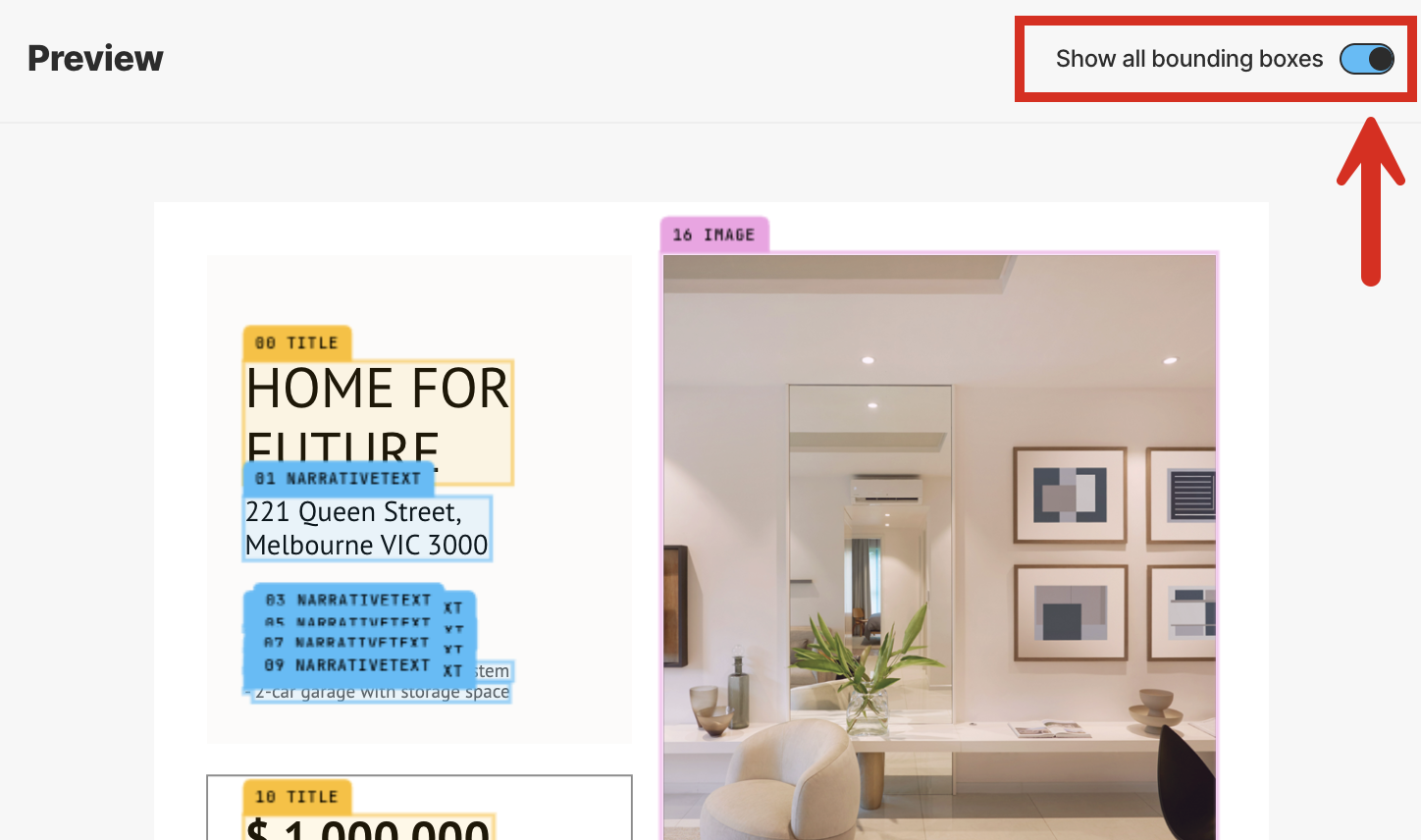
To show all of the bounding boxes in the **Preview** pane at once, turn on the **Show all bounding boxes** toggle at the top of the **Preview** pane.
You can now click any of the bounding boxes without first needing to rest your mouse pointer on them to show them.
You can also do the following:
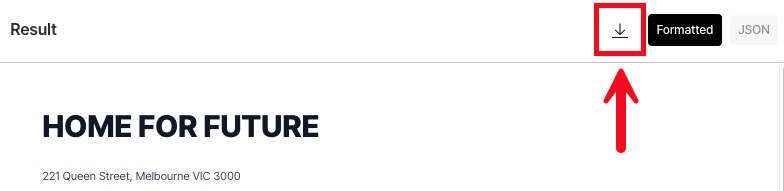
* To download the JSON view of the results as a local JSON file, click the download icon to the left of the **Formatted** and **JSON** buttons in the **Result** pane.
(You cannot download the formatted view of the results.)
* To have Unstructured partition a different file, click **Add new file** in the **Files** pane on the left, and then browse to and select the target file.
* To view the results for a file that was previously partitioned during this session, click the file's name in the **Recent files** list in the **Files** pane.
* To return to the **Start** page, click the **X** (close) button at the left on the title bar, next to **Transform**.
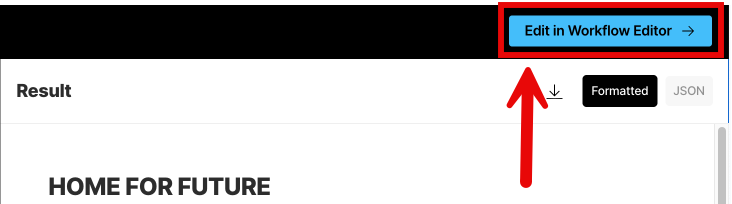
* To have Unstructured do more—such as
[chunking](/ui/chunking), [embedding](/ui/embedding),
applying additional kinds of [enrichments](/ui/enriching/overview), and
processing larger files and semi-structured data in batches at scale—click
**Edit in Workflow Editor** at the right on the title bar, and then [skip over to the walkthrough](/ui/walkthrough-2).
What's next?
* [Learn how to add chunking, embeddings, and additional enrichments to your local file results](/ui/walkthrough-2).
* [Learn how to do large-scale batch processing of multiple files and semi-structured data that are stored in remote locations instead](/ui/quickstart#remote-quickstart).
* [Learn more about the Unstructured user interface](/ui/overview).
***
## Unstructured API quickstart
This quickstart shows how you can use the Unstructured API to quickly and easily see Unstructured's
transformation results for files that are stored locally.
This quickstart is designed to work *only by processing local files*.
To process files (and data) in remote file and blob storage, databases, and vector stores, you must use
workflow operations in the Unstructured API other than the ones that are used in this quickstart. To learn how, see for example the notebook
[Dropbox-To-Pinecone Connector API Quickstart for Unstructured](https://colab.research.google.com/github/Unstructured-IO/notebooks/blob/main/notebooks/Dropbox_To_Pinecone_Connector_Quickstart.ipynb).
1. If you do not already have an Unstructured account, [sign up for free](https://unstructured.io/?modal=try-for-free).
After you sign up, you are automatically signed in to your Unstructured **Let's Go** account, at [https://platform.unstructured.io](https://platform.unstructured.io).
If you already have an Unstructured **Pay-As-You-Go** or **Business SaaS** account, you are already signed up for Unstructured.
Sign in to your existing Unstructured **Pay-As-You-Go** or **Business SaaS** account, at [https://platform.unstructured.io](https://platform.unstructured.io).
If you already have an Unstructured **dedicated instance** or **in-VPC** deployment, your sign-in link will be unique to your deployment.
If you're not sure what your unique sign-in link is, see your Unstructured account administrator, or email Unstructured Support at
[support@unstructured.io](mailto:support@unstructured.io).
2. Get your Unstructured API key:
a. After you sign in to your Unstructured account, click **API Keys** on the sidebar.
For a **Business** account, before you click **API Keys**, make sure you have selected the organizational workspace you want to create an API key
for. Each API key works with one and only one organizational workspace. [Learn more](/ui/account/workspaces#create-an-api-key-for-a-workspace).
b. Click **Generate API Key**.
c. Follow the on-screen instructions to finish generating the key.
d. Click the **Copy** icon next to your new key to add the key to your system's clipboard. If you lose this key, simply return and click the **Copy** icon again.
3. Now that you have your Unstructured API key, choose one of the following options to continue:
* [Use a remote notebook](https://colab.research.google.com/github/Unstructured-IO/notebooks/blob/main/notebooks/Unstructured_API_On_Demand_Jobs_Quickstart.ipynb) - This option uses a remotely hosted Google Colab notebook. There are no additional setup steps required.
* [Use your local machine](/api-reference/quickstart) - This option requires you to install the Unstructured Python SDK on your local machine.
[Learn more](/api-reference/overview).
***
## Pricing
Unstructured offers different account types with different pricing plans:
* **Let's Go** and **Pay-As-You-Go** - A single user, with a single workspace, hosted alongside other accounts on Unstructured's cloud infrastructure.
* **Business** - Multiple users and workspaces, with three options:
* **Business SaaS** - Hosted alongside other accounts on Unstructured's cloud infrastructure.
* **Dedicated instance** - Hosted within a virtual private cloud (VPC) running inside Unstructured's cloud infrastructure. Dedicated instances are isolated from all other accounts, for additional security and control.
* **In-VPC** - Hosted within your own VPC on your own cloud infrastructure.
**Business** accounts also allow for robust customization of Unstructured's features for your unique needs.
For more details, see the [Unstructured Pricing](https://unstructured.io/pricing) page.
To upgrade your account from **Let's Go** or **Pay-As-You-Go** to **Business**,
email Unstructured Sales at [sales@unstructured.io](mailto:sales@unstructured.io).
Some of these plans have billing details that are determined on a per-page basis.
Unstructured calculates a page as follows:
* For these file types, a page is a page, slide, or image: `.pdf`, `.pptx`, and `.tiff`.
* For `.docx` files that have page metadata, Unstructured calculates the number of pages based on that metadata.
* For all other file types, Unstructured calculates the number of pages as the file's size divided by 100 KB.
* For non-file data, Unstructured calculates a page as 100 KB of incoming data to be processed.
***
## Questions? Need help?
* For general questions about Unstructured products and pricing, email Unstructured Sales at [sales@unstructured.io](mailto:sales@unstructured.io).
* For technical support for Unstructured accounts, email Unstructured Support at [support@unstructured.io](mailto:support@unstructured.io).
* For technical support for the Unstructured open source library, use our [Slack community](https://short.unstructured.io/pzw05l7).
 3. After Unstructured has finished parsing and transforming the file (a process known as
[partitioning](/ui/partitioning)), you will see the file's contents in the
**Preview** pane in the center and Unstructured's results in the **Result** pane on the right.
3. After Unstructured has finished parsing and transforming the file (a process known as
[partitioning](/ui/partitioning)), you will see the file's contents in the
**Preview** pane in the center and Unstructured's results in the **Result** pane on the right.
 4. The **Result** pane shows a formatted view of Unstructured's results by default. This formatted view is designed for human
readability. To see the underlying JSON view of the results, which is designed for RAG and agentic AI,
click **JSON** at the top of the **Result** pane.
[Learn about what's in the JSON view](/ui/document-elements).
4. The **Result** pane shows a formatted view of Unstructured's results by default. This formatted view is designed for human
readability. To see the underlying JSON view of the results, which is designed for RAG and agentic AI,
click **JSON** at the top of the **Result** pane.
[Learn about what's in the JSON view](/ui/document-elements).
 5. Unstructured's initial results are based on its **High Res** [partitioning strategy](/ui/partitioning), which
begins processing the file's contents and converting these contents into a series of Unstructured
[document elements and metadata](/ui/document-elements). This partitioning strategy provides good results overall, depending on the complexity of the file's contents.
This partitioning strategy also generates a bounding box for each detected object in the file. A *bounding box* is
an imaginary rectangular box drawn around the object to show its location and extent within the file.
After the High Res partitioning results are shown, Unstructured begins improving these initial results by
using vision language models (VLMs) to apply a series of generative refinements known as *enrichments*. These
enrichments include:
* An [image description](ui/enriching/image-descriptions) enrichment, which uses a VLM to provide a text-based summary of the contents of each detected image.
* A [generative OCR](/ui/enriching/generative-ocr) enrichment, which uses a VLM to improve the accuracy of each block of initially-processed text.
* A [table to HTML](/ui/enriching/table-to-html) enrichment, which uses a VLM to provide an HTML-structured representation of each detected table.
While these enrichments are being applied, a banner appears at the top of the **Result** pane.
5. Unstructured's initial results are based on its **High Res** [partitioning strategy](/ui/partitioning), which
begins processing the file's contents and converting these contents into a series of Unstructured
[document elements and metadata](/ui/document-elements). This partitioning strategy provides good results overall, depending on the complexity of the file's contents.
This partitioning strategy also generates a bounding box for each detected object in the file. A *bounding box* is
an imaginary rectangular box drawn around the object to show its location and extent within the file.
After the High Res partitioning results are shown, Unstructured begins improving these initial results by
using vision language models (VLMs) to apply a series of generative refinements known as *enrichments*. These
enrichments include:
* An [image description](ui/enriching/image-descriptions) enrichment, which uses a VLM to provide a text-based summary of the contents of each detected image.
* A [generative OCR](/ui/enriching/generative-ocr) enrichment, which uses a VLM to improve the accuracy of each block of initially-processed text.
* A [table to HTML](/ui/enriching/table-to-html) enrichment, which uses a VLM to provide an HTML-structured representation of each detected table.
While these enrichments are being applied, a banner appears at the top of the **Result** pane.
 To see these enrichments applied to the initial results, click **Update results** in the banner as soon as this button appears,
which might take up to a minute or more.
To see these enrichments applied to the initial results, click **Update results** in the banner as soon as this button appears,
which might take up to a minute or more.

 To show all of the bounding boxes in the **Preview** pane at once, turn on the **Show all bounding boxes** toggle at the top of the **Preview** pane.
You can now click any of the bounding boxes without first needing to rest your mouse pointer on them to show them.
To show all of the bounding boxes in the **Preview** pane at once, turn on the **Show all bounding boxes** toggle at the top of the **Preview** pane.
You can now click any of the bounding boxes without first needing to rest your mouse pointer on them to show them.
 You can also do the following:
* To download the JSON view of the results as a local JSON file, click the download icon to the left of the **Formatted** and **JSON** buttons in the **Result** pane.
(You cannot download the formatted view of the results.)
You can also do the following:
* To download the JSON view of the results as a local JSON file, click the download icon to the left of the **Formatted** and **JSON** buttons in the **Result** pane.
(You cannot download the formatted view of the results.)
 * To have Unstructured partition a different file, click **Add new file** in the **Files** pane on the left, and then browse to and select the target file.
* To view the results for a file that was previously partitioned during this session, click the file's name in the **Recent files** list in the **Files** pane.
* To return to the **Start** page, click the **X** (close) button at the left on the title bar, next to **Transform**.
* To have Unstructured do more—such as
[chunking](/ui/chunking), [embedding](/ui/embedding),
applying additional kinds of [enrichments](/ui/enriching/overview), and
processing larger files and semi-structured data in batches at scale—click
**Edit in Workflow Editor** at the right on the title bar, and then [skip over to the walkthrough](/ui/walkthrough-2).
* To have Unstructured partition a different file, click **Add new file** in the **Files** pane on the left, and then browse to and select the target file.
* To view the results for a file that was previously partitioned during this session, click the file's name in the **Recent files** list in the **Files** pane.
* To return to the **Start** page, click the **X** (close) button at the left on the title bar, next to **Transform**.
* To have Unstructured do more—such as
[chunking](/ui/chunking), [embedding](/ui/embedding),
applying additional kinds of [enrichments](/ui/enriching/overview), and
processing larger files and semi-structured data in batches at scale—click
**Edit in Workflow Editor** at the right on the title bar, and then [skip over to the walkthrough](/ui/walkthrough-2).
 What's next?
*
What's next?
*